SQL Console
SQL Console is the main workspace for writing and running SQL in Dory. It works together with Explorer, AI Chat, result tables, charts, and Saved Queries.
Interface Structure
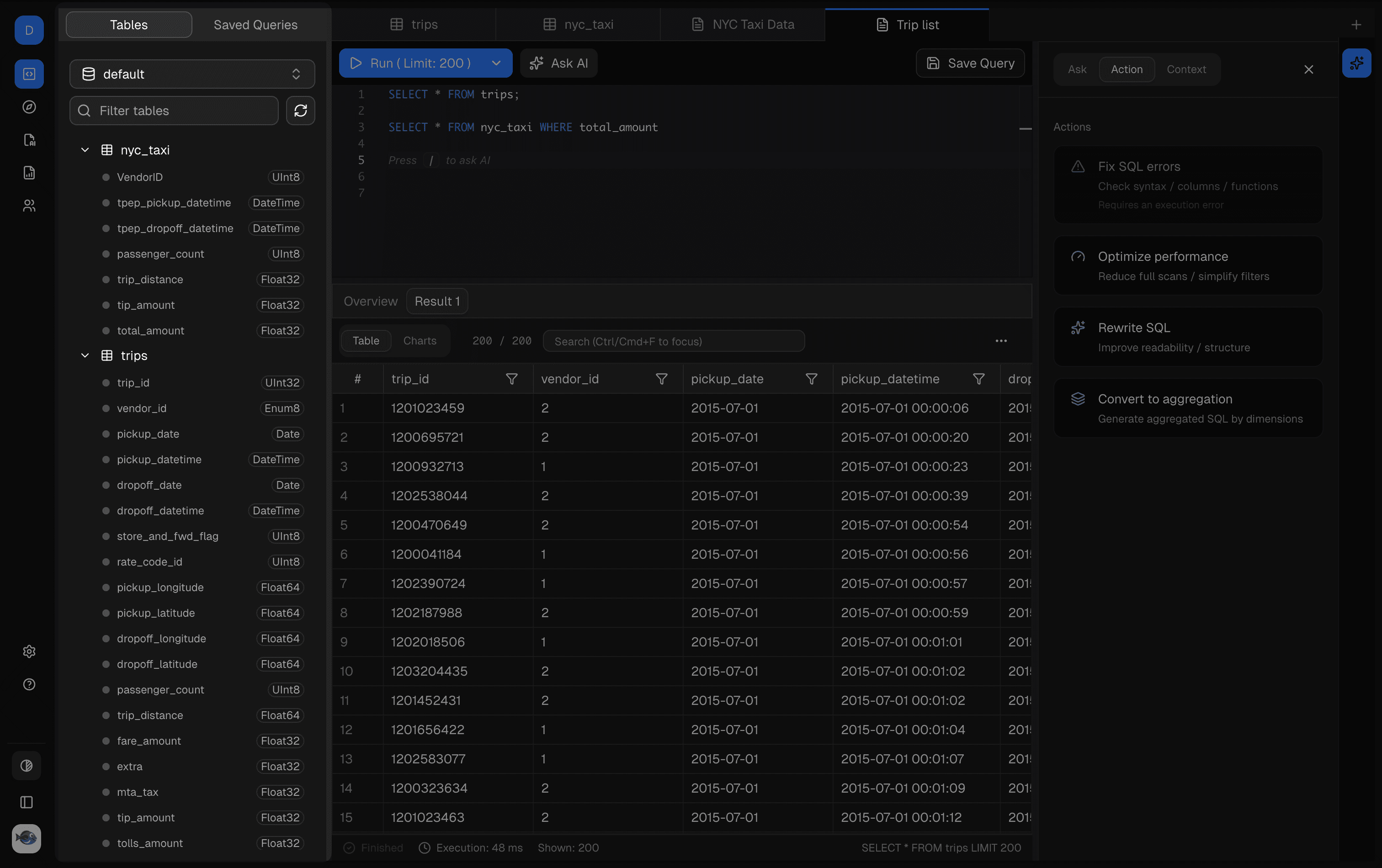
SQL Console typically includes:
- A connection and schema context.
- A SQL editor.
- Query execution controls.
- Result tables and chart entry points.
- Access to AI assistance.
- Saved query actions.
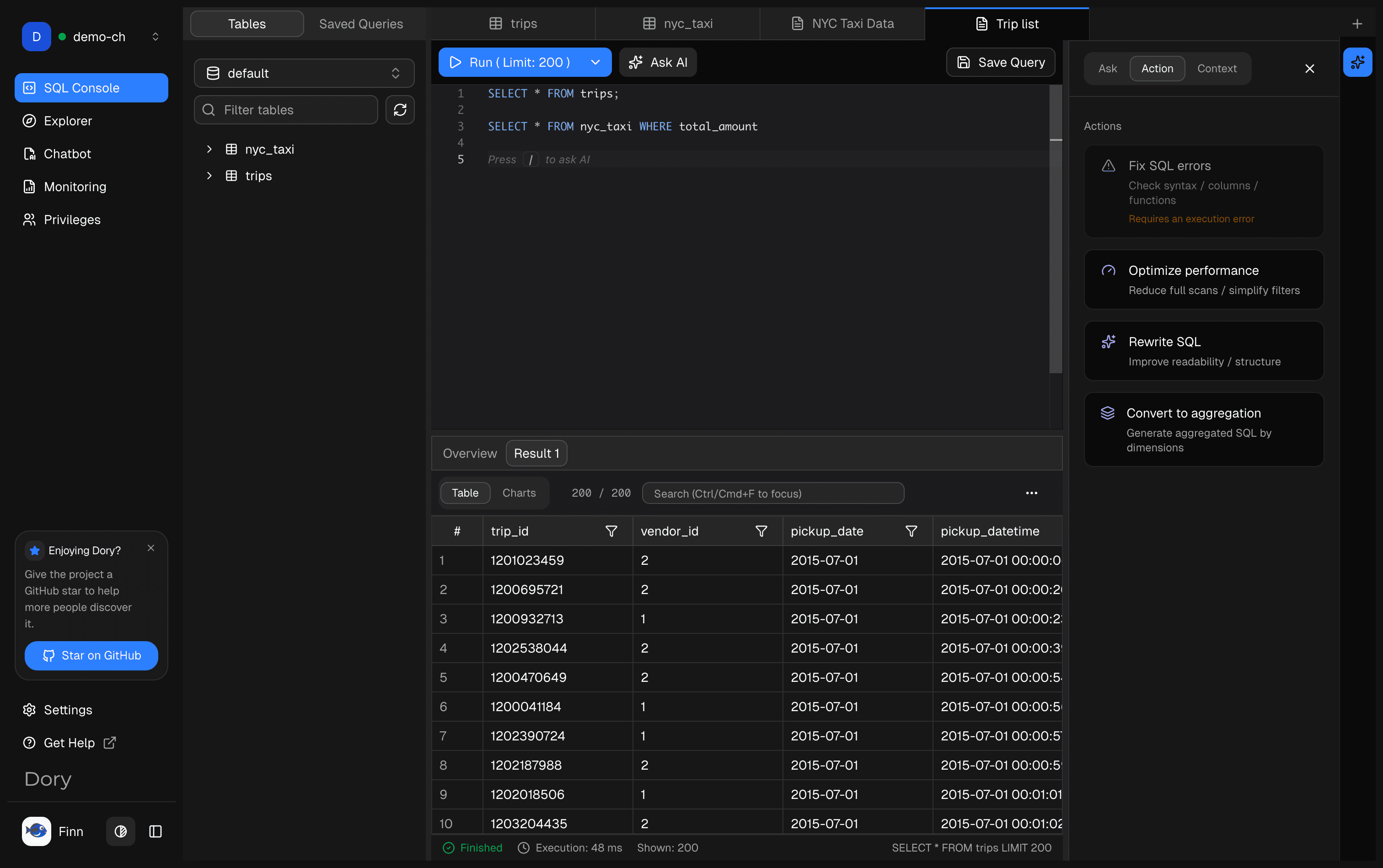
Writing SQL
Start with small, safe queries. Confirm table and column names in Explorer before adding complex filters, joins, or aggregations.
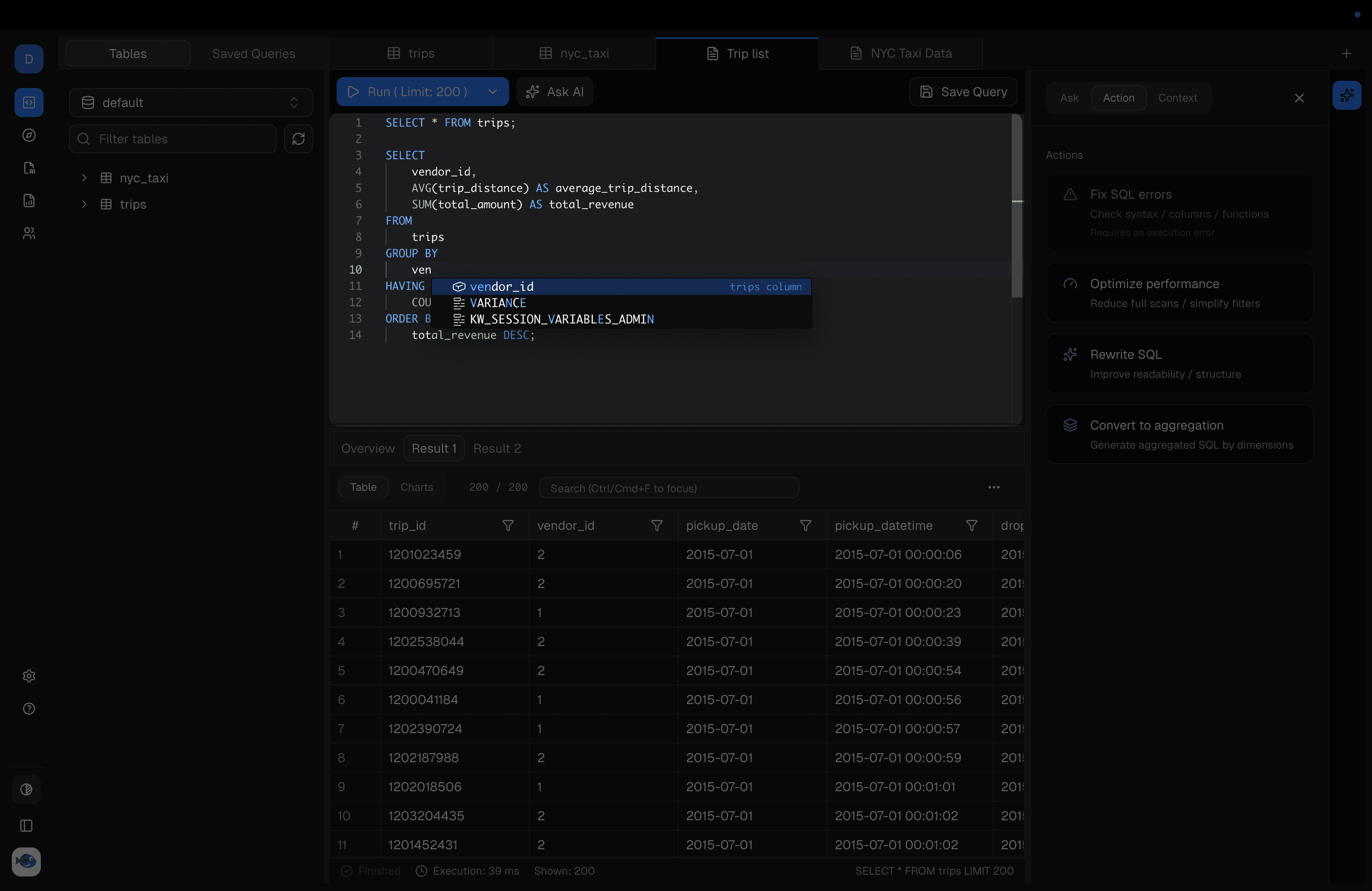
Running Queries
Run SQL against the selected connection. Review results, errors, and execution behavior before using the output for decisions.
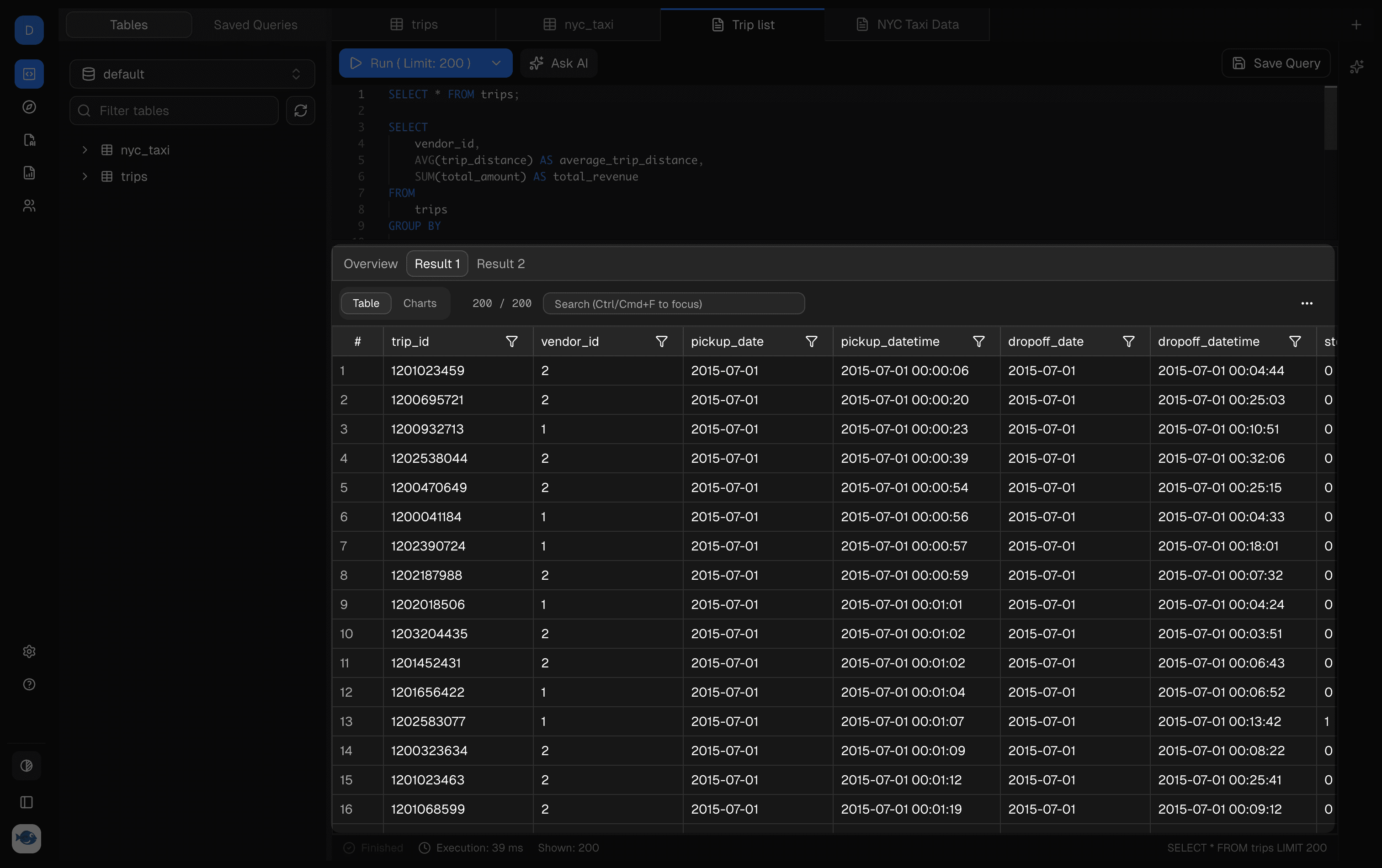
Multi-Tab Workflow
Use multiple tabs to keep exploration, final analysis, and alternative query drafts separate.
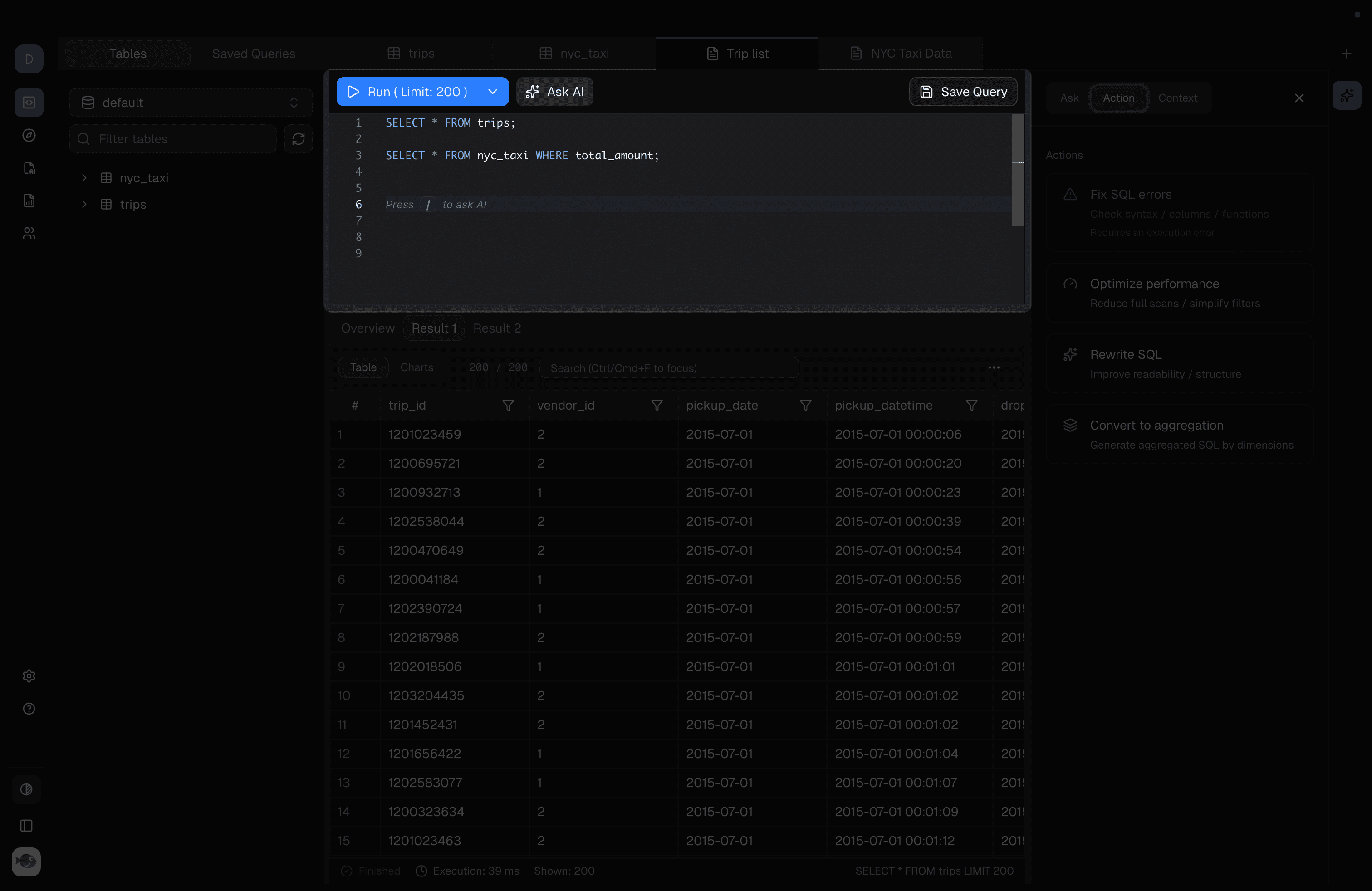
Use the Left Schema Panel
The schema panel helps you avoid guessing names:
select *
from your_table
limit 20;
Open tables in Explorer when you need more detail.
AI Copilot
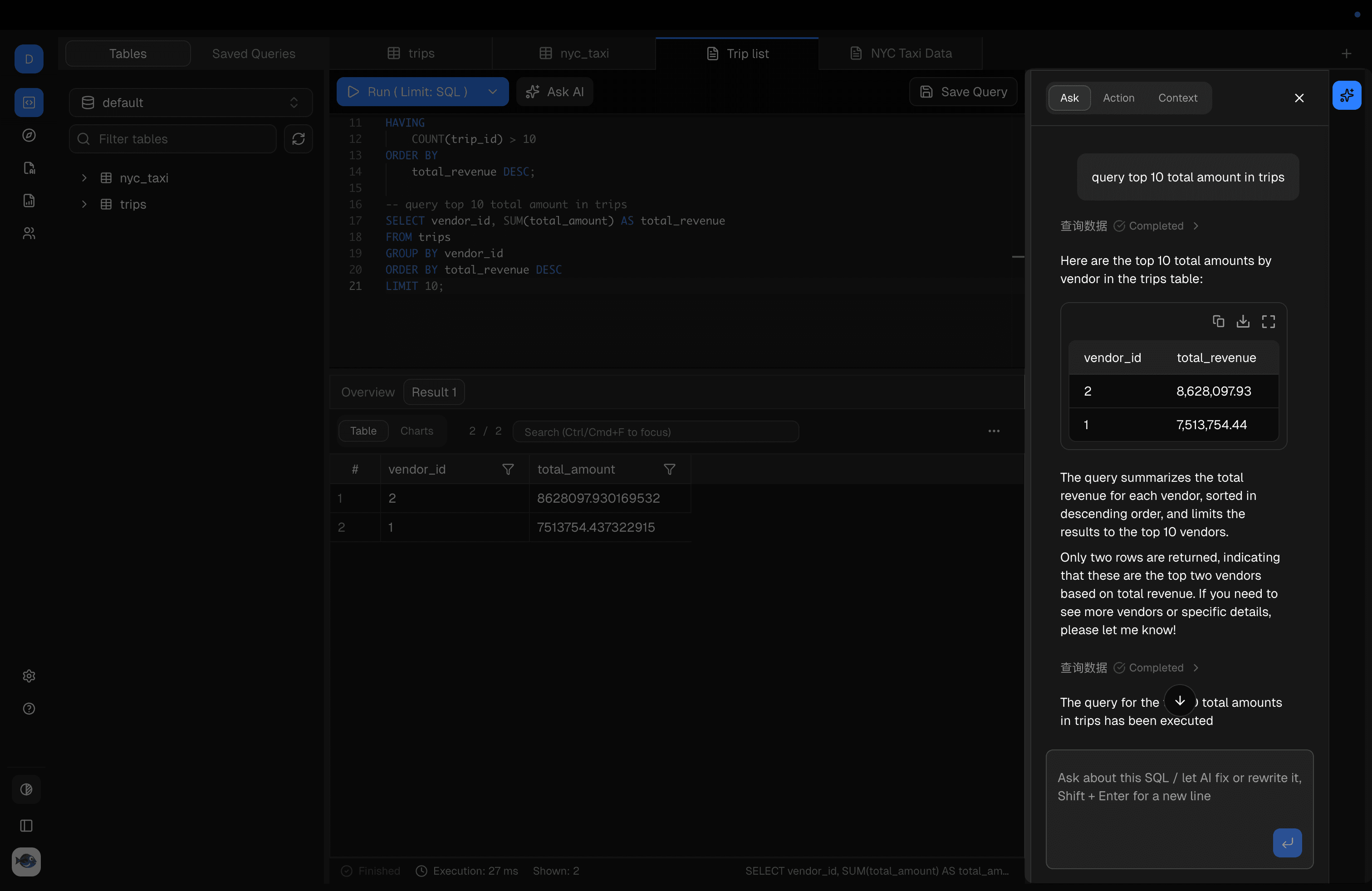
Use AI to generate SQL, explain SQL, fix errors, optimize queries, or reshape output for charts. Copilot is organized into Ask, Action, and Context tabs. Always review generated SQL before running it.
Ask
Use Ask for open-ended SQL help. You can ask Copilot to generate a query, explain current SQL, reason about an error, or suggest the next analysis step from the current editor and result context.
Action
Open the Action tab in Copilot to run focused SQL actions against the current editor SQL and latest execution context.
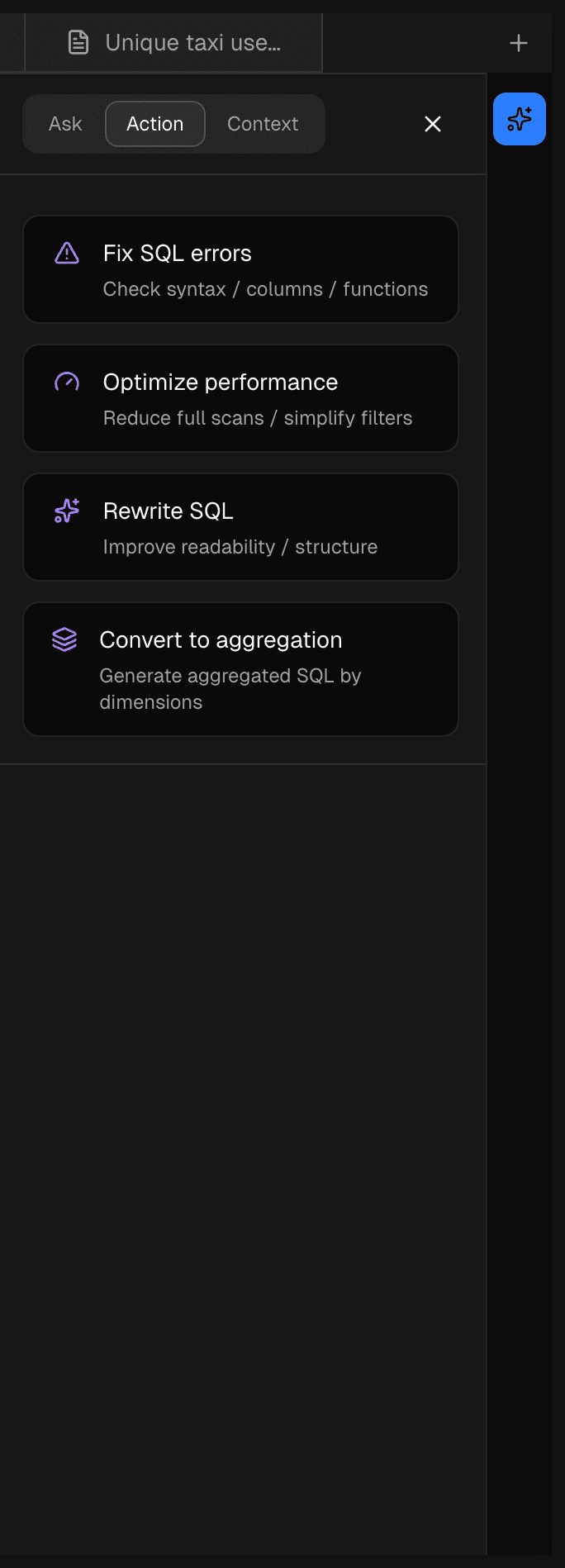
Use the built-in actions for common SQL iteration loops:
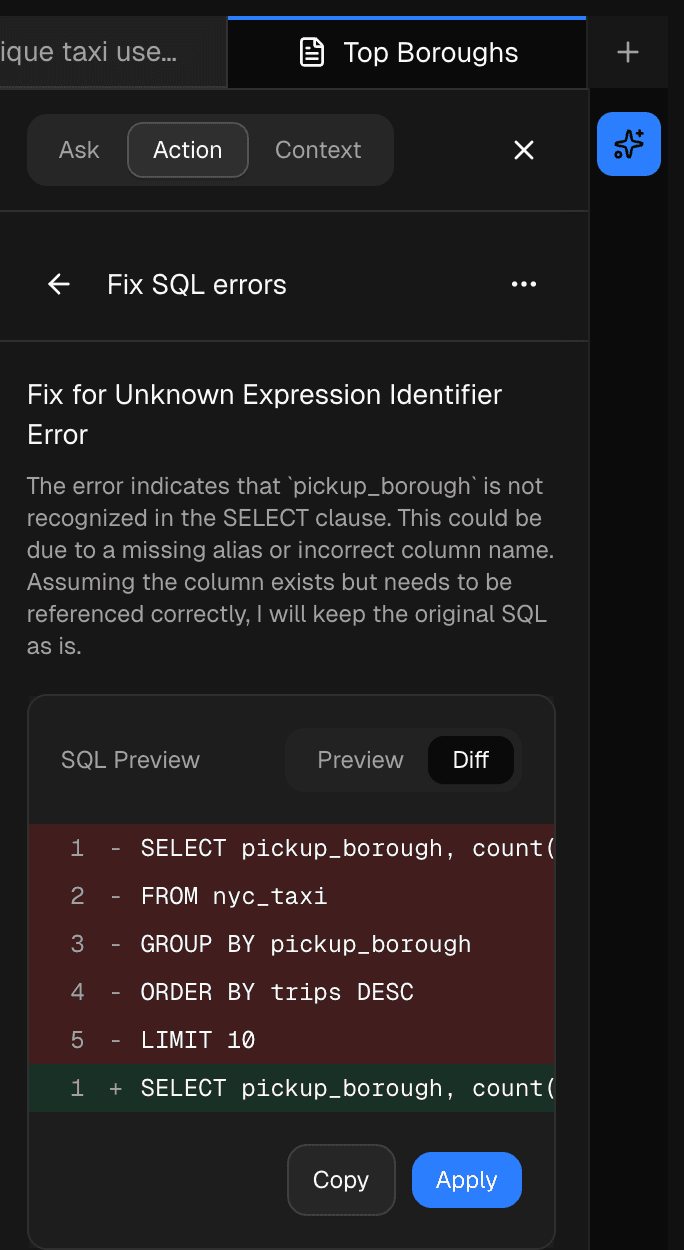
- Fix SQL errors: uses the latest execution error to propose a corrected SQL version.
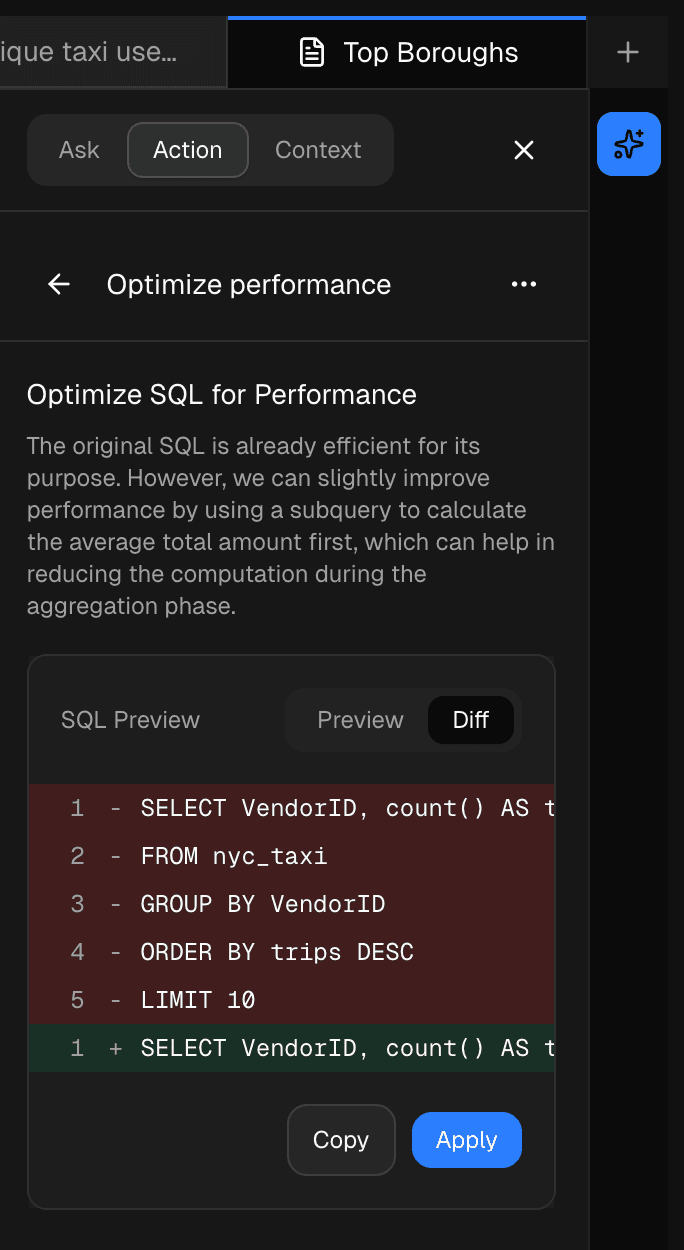
- Optimize performance: rewrites SQL to reduce unnecessary scans, simplify filters, or improve execution shape.
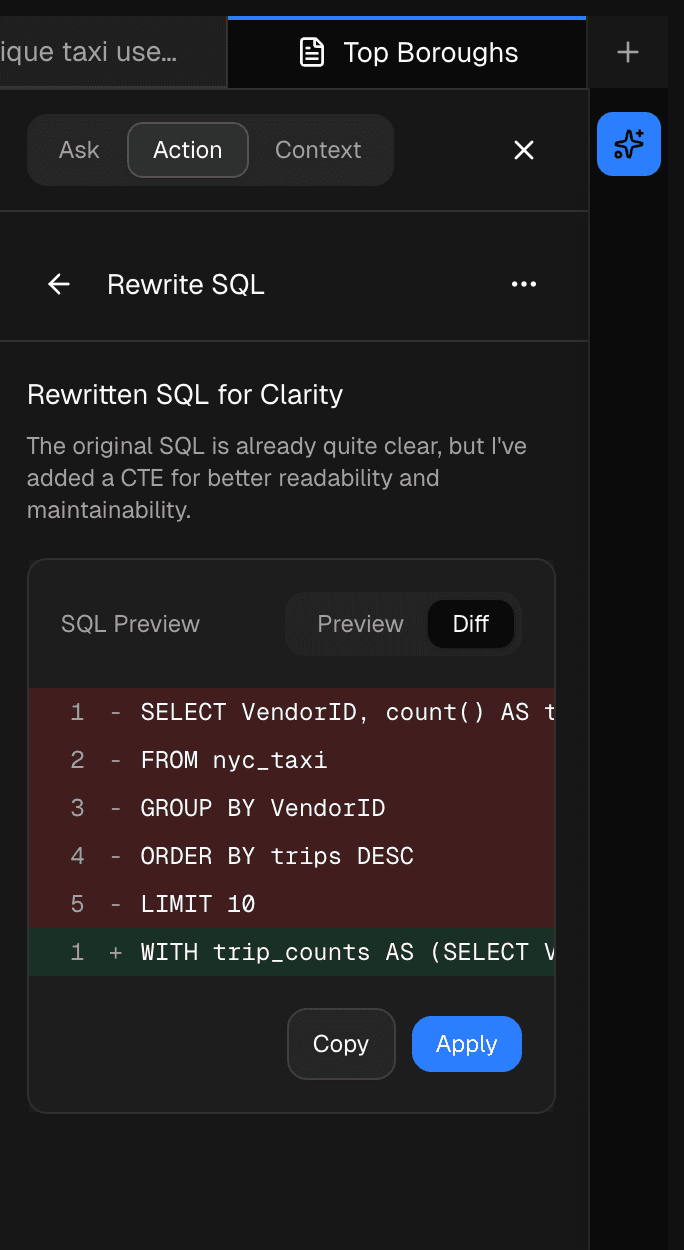
- Rewrite SQL: restructures SQL for readability while preserving the intent.
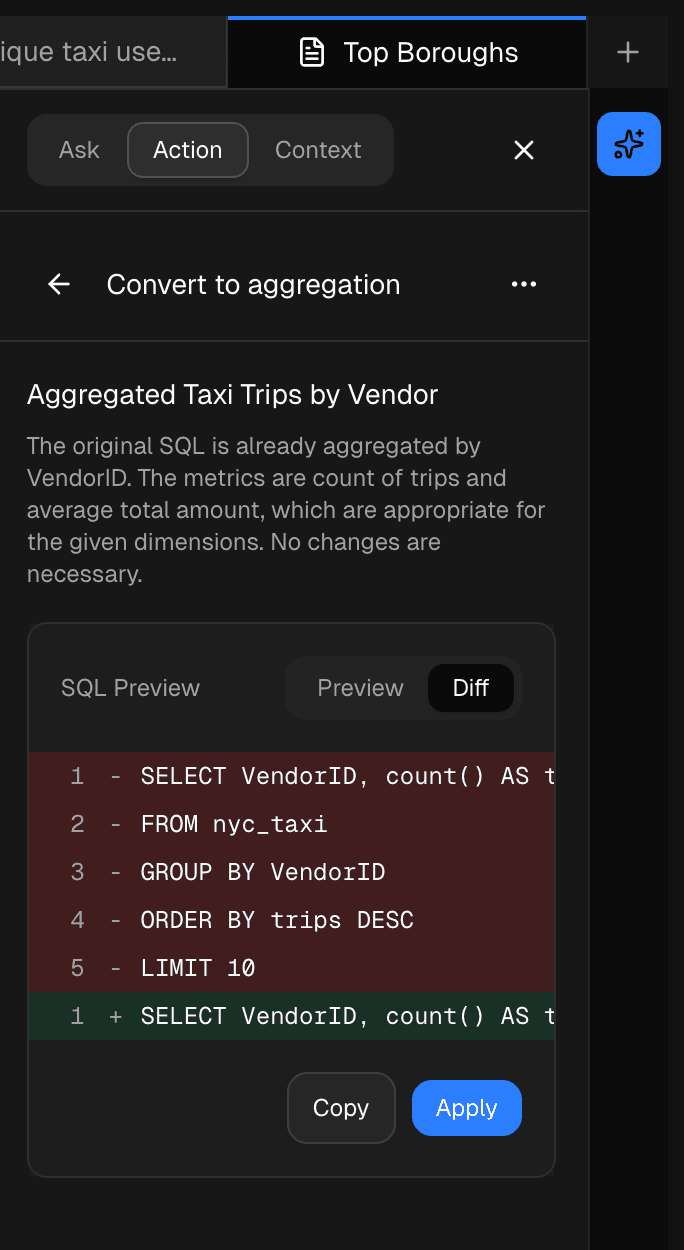
- Convert to aggregation: turns row-level SQL into grouped, metric-oriented SQL for summaries and charts.
After you run an action, Copilot opens a result panel with a short explanation, SQL preview or diff, and Copy / Apply controls.
Fix SQL errors
Optimize performance
Rewrite SQL
Convert to aggregation
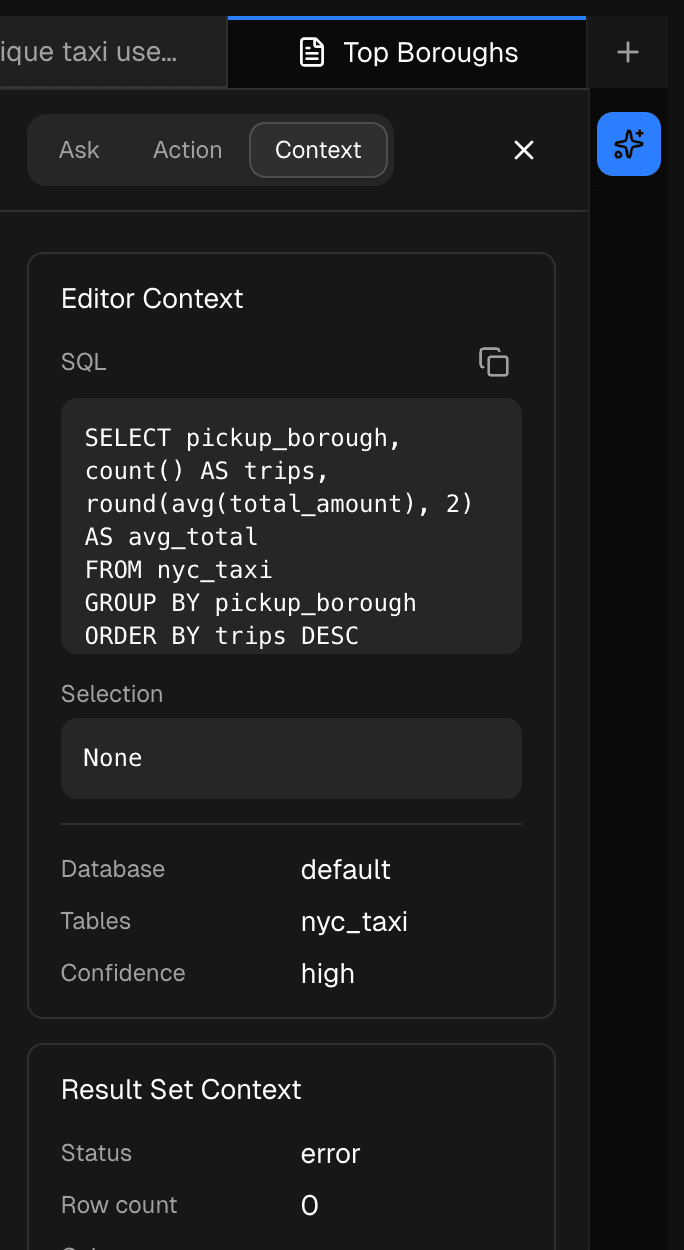
Context
Open the Context tab to inspect what Copilot will use before it answers: editor SQL, selected SQL, database, referenced tables, confidence, execution status, row count, and result profile. Use it to confirm Copilot is working from the right query and result set.
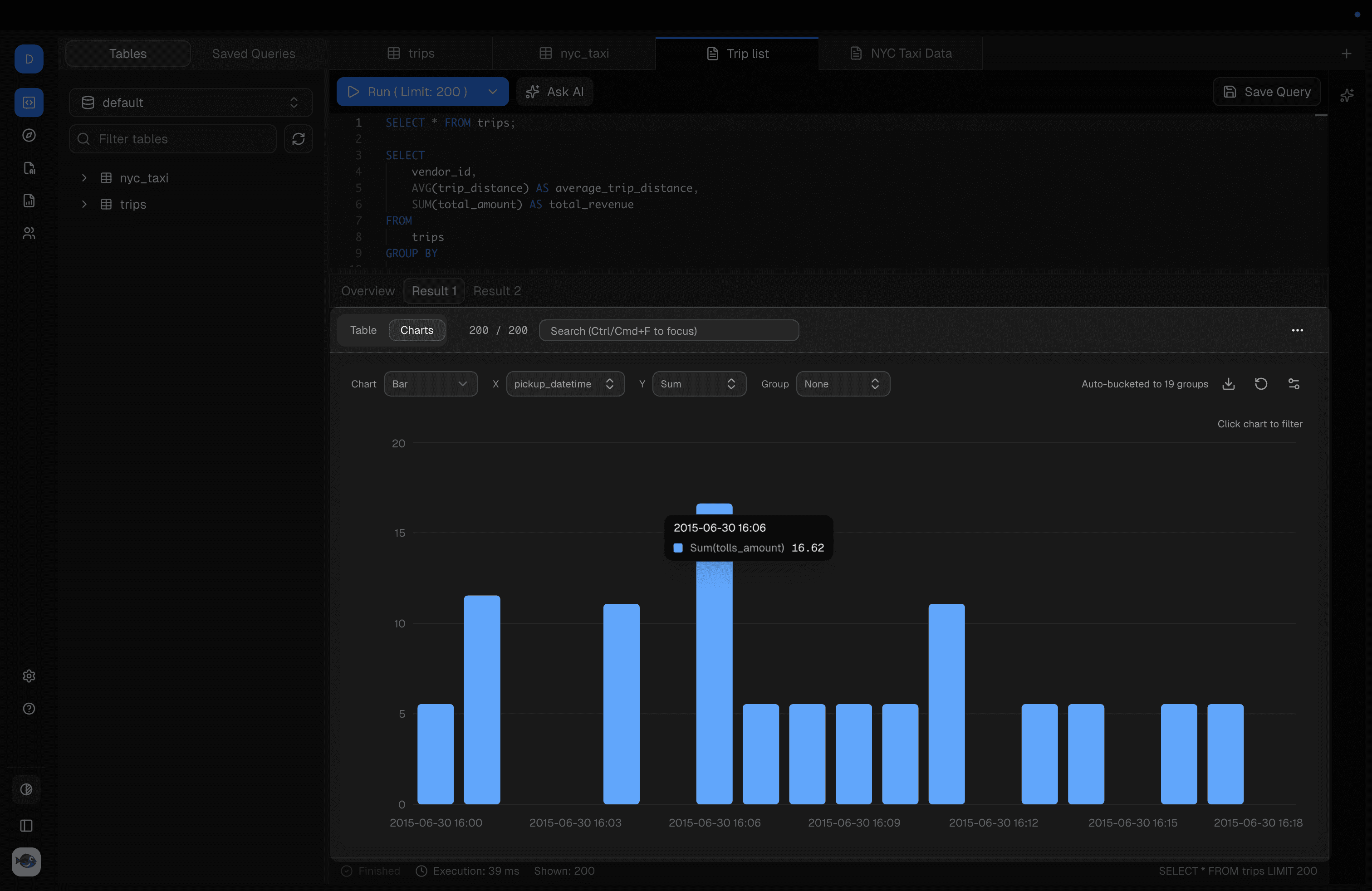
Results and Charts
After execution, inspect the result table. If the result is aggregated and well-shaped, create a chart from it.
Desktop SQLite Example
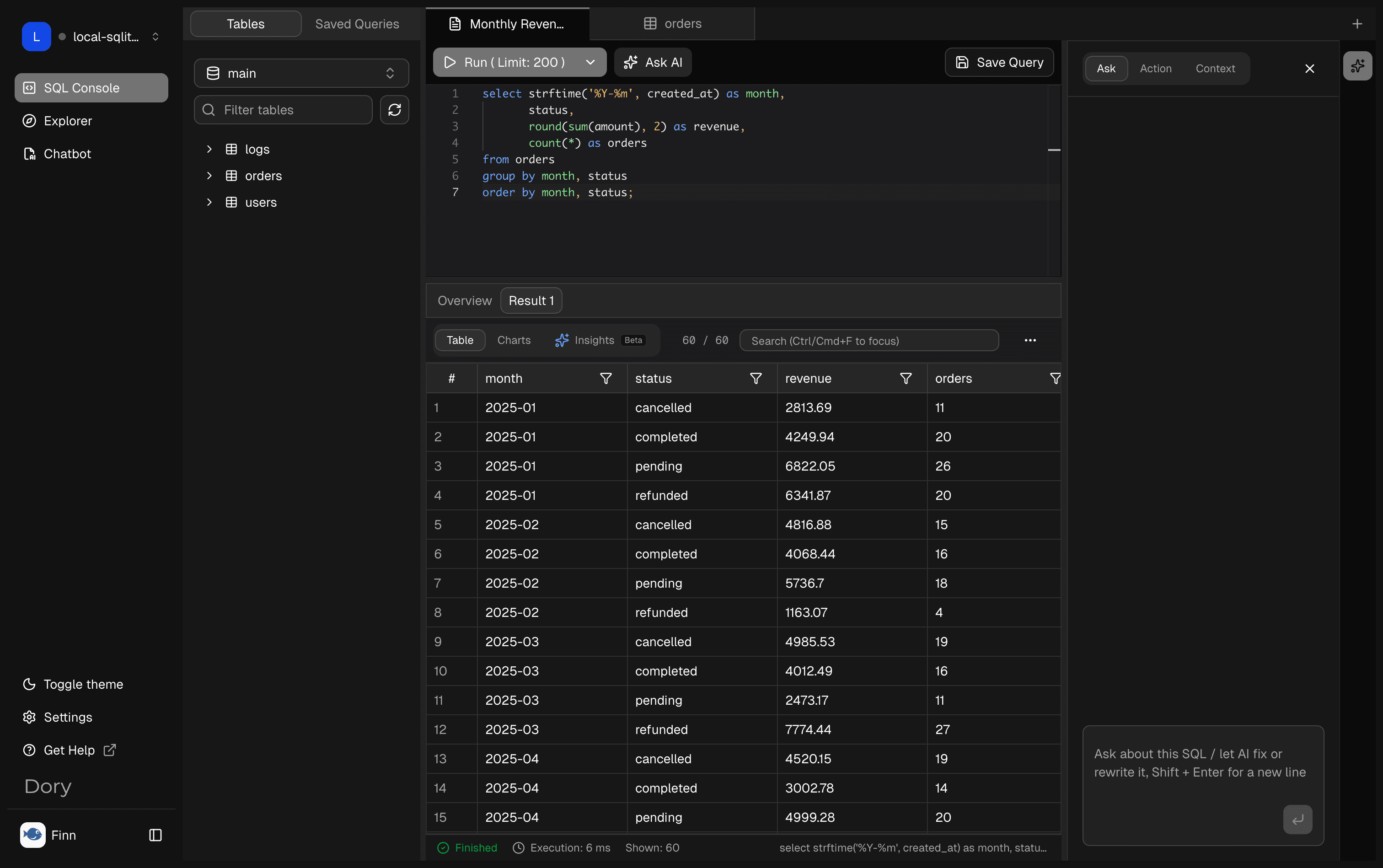
After creating a SQLite connection from /Users/Shared/Data/demo.sqlite, open SQL Console with that connection selected. The left schema panel should show the SQLite main database and its tables.
Run a chart-friendly aggregate query:
select strftime('%Y-%m', created_at) as month,
       status,
       round(sum(amount), 2) as revenue,
       count(*) as orders
from orders
group by month, status
order by month, status;
The result table confirms that Dory executed the SQL against the local SQLite file.
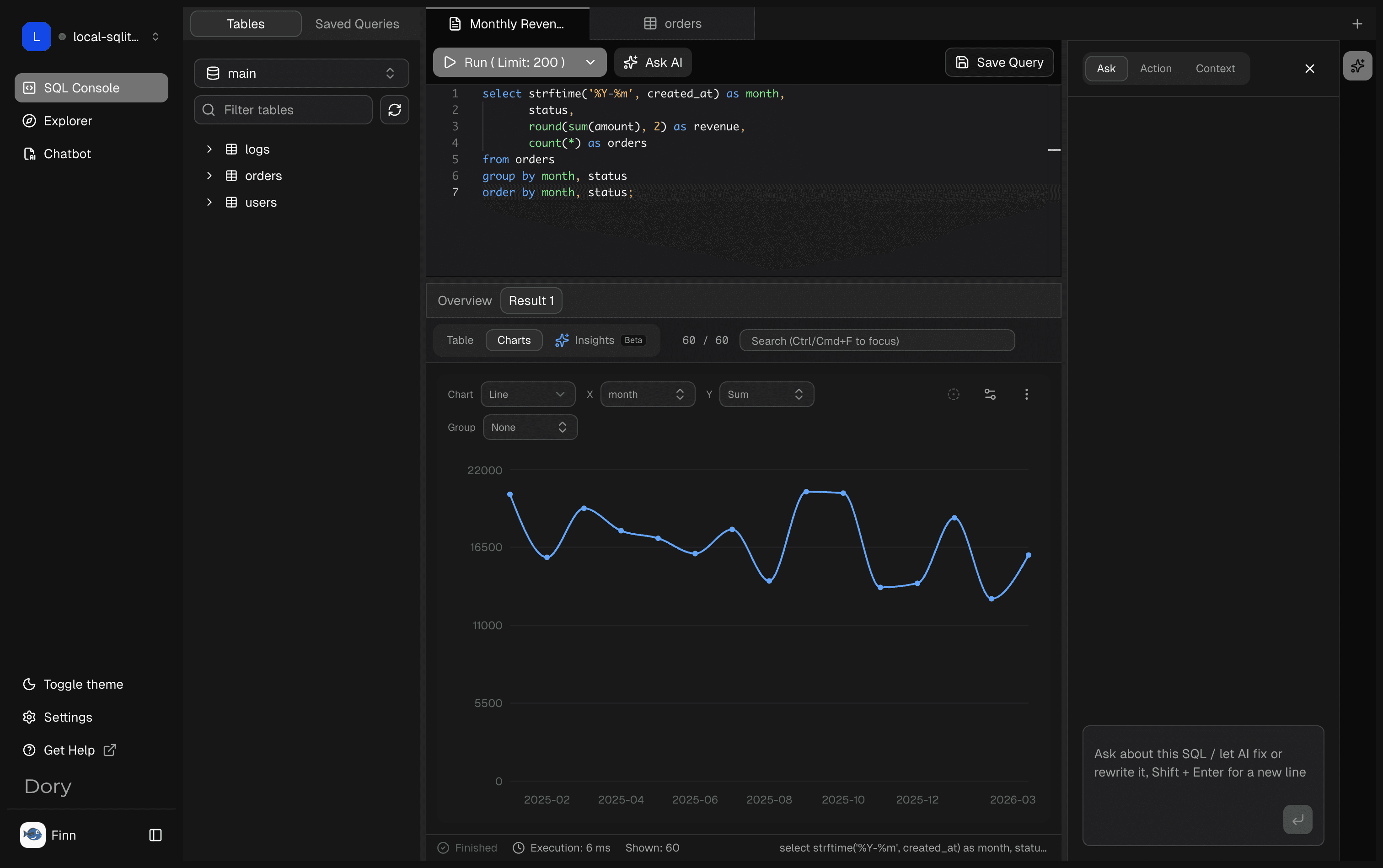
Switch from Table to Charts to inspect the same result visually. Dory can use the month column as the X axis and a numeric metric such as revenue or count as the Y axis.
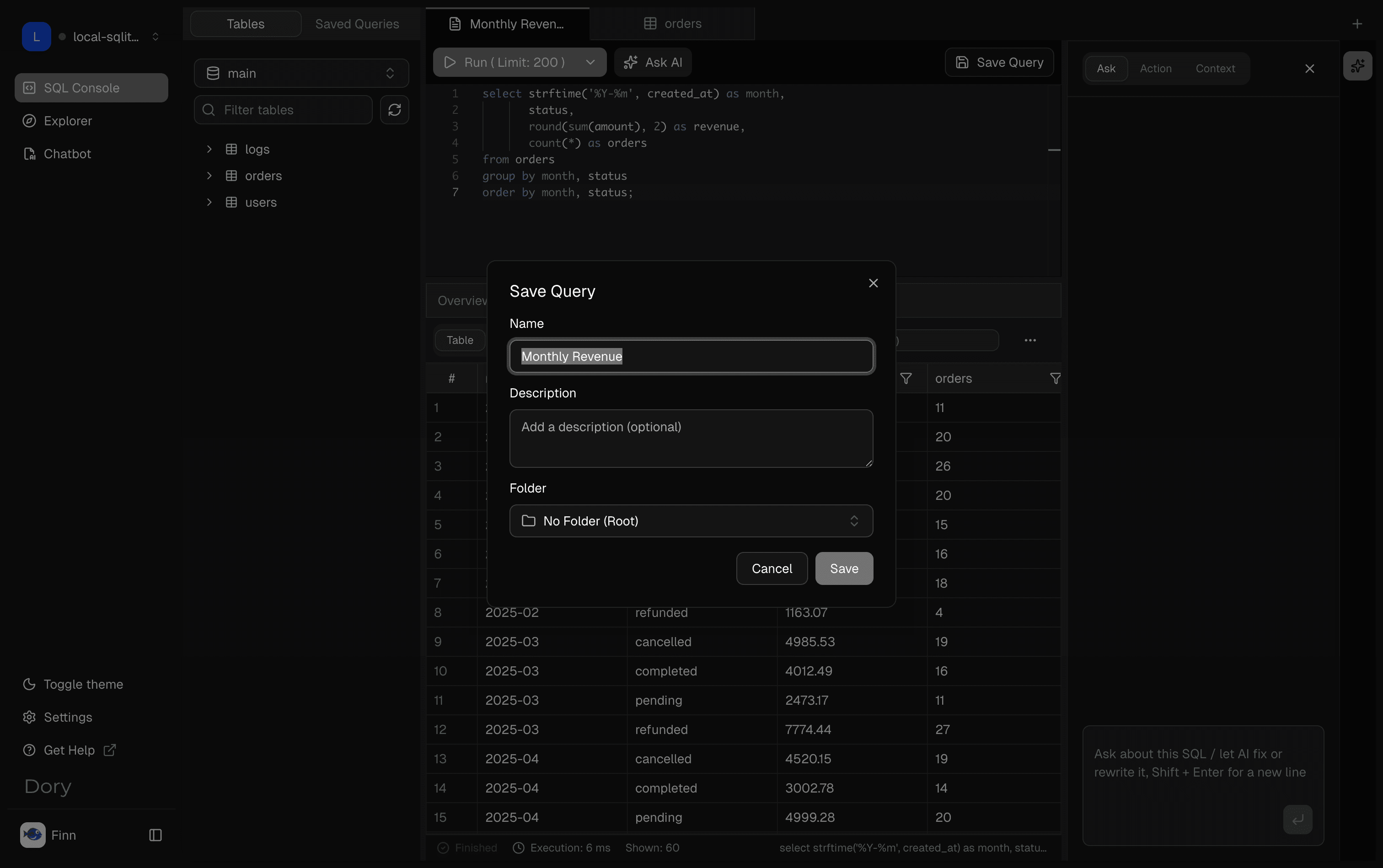
Save Queries
Save useful SQL with a clear name and description after it has been validated.
Best Practices
- Use read-only credentials for production data.
- Start with
limitand narrow filters. - Keep one query goal per tab.
- Validate AI output against schema and sample rows.
- Save only queries that are useful beyond the current session.
Recommended Next Step
Continue with AI Chat, Charts & Results, or Saved Queries.
How is this guide?